Every crew member wears a radio with a speaker microphone clipped to the chest. It carries voice chat between players in a co-op session. It works over Steam; the voice itself uses Steam's own voice service.
The channels
There are four channels, numbered 1 to 4. Everybody starts on channel 1. You hear and talk to the players who are on the same channel as you. Players on other channels hear nothing of it, so a crew can split into a surface team and a drift team.
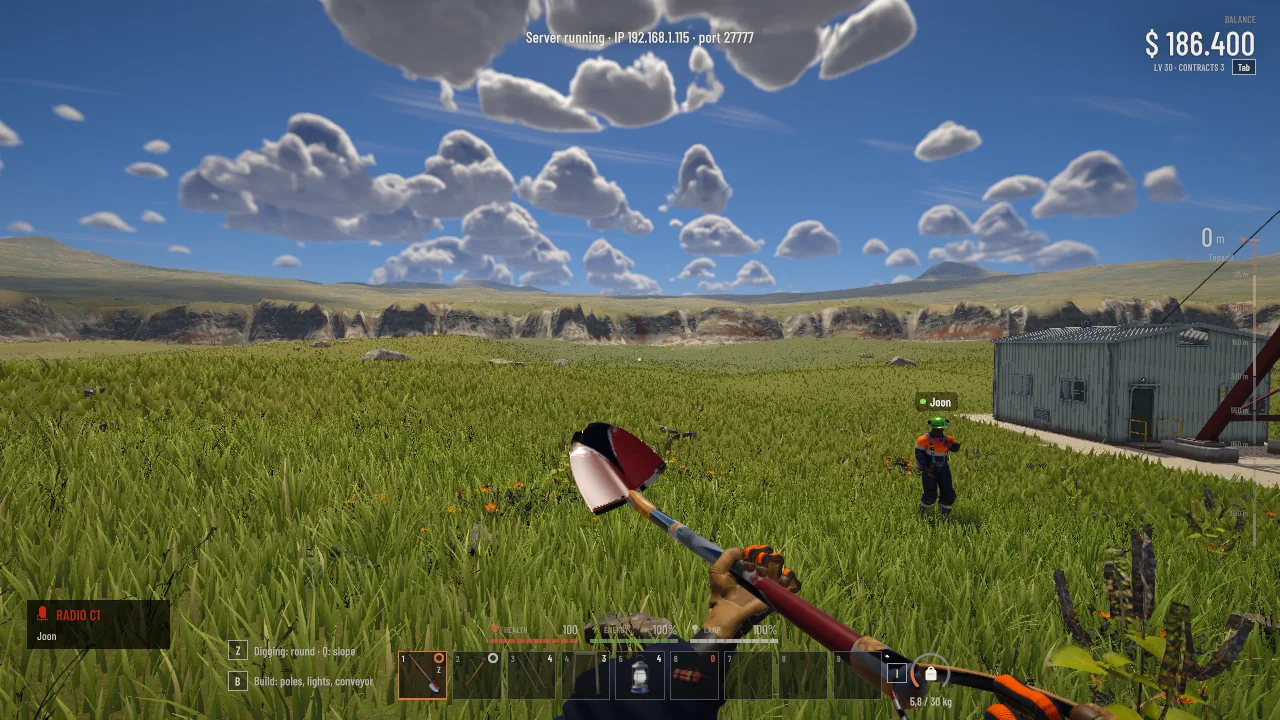
The radio chip at the bottom left of the screen (it shows only in a co-op session) reads Radio C{n}, with a microphone glyph that lights up while you transmit. Under it a line appears for each player who is talking on your channel.
Controls
| Action | Default key |
|---|---|
| Radio: push to talk (hold) | . |
| Radio: next channel | , |
| Radio: previous channel | Shift + , |
Changing the channel shows a toast "Radio: channel {n}" and plays a small click. The channel is remembered between sessions. You can rebind the keys in Settings > Sound & controls. The pad has no default radio buttons, because every pad button is already used; you can bind one on the controls page.
The keys do nothing while the pause menu, shop, chat, inventory, notebook or mine map is open, or while you are typing.
Settings
Open Settings > Sound & controls.
- Voice chat: Push to talk (default), Open mic or Off.
- Push to talk: hold the talk key to speak. The microphone stays open for a moment after you let go so your last word is not cut.
- Open mic: Steam notices when you speak, and you transmit without pressing anything.
- Off: your microphone never opens, but you still hear the others.
- Radio volume: how loud the other players' radio is. At 0 you hear none of it, and your own voice is still sent.
- Microphone: a live level meter of your microphone, so you can check that Steam picks it up. It only works with Steam running and while this page is open.
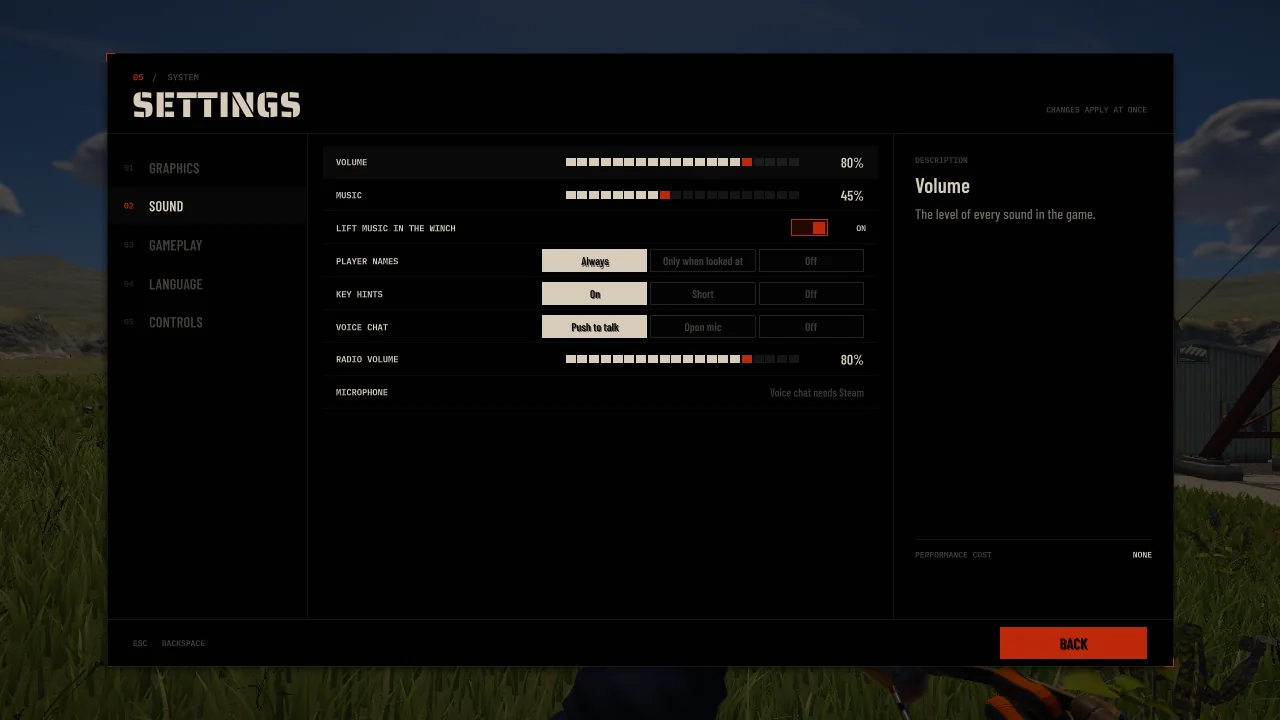
Without Steam (a connection by IP) there is no voice, and the settings page says "Voice chat needs Steam".
Muting players
Hold the player list key and press the right mouse button to free the mouse (see Co-op). Each other player has a Mute button. It silences that player's radio for you only, and the button turns into Unmute. The list also shows each player's channel and a speaker mark while they talk.
How it sounds and what others see
- The voice goes through a radio filter: it is thin and a little crunchy, with a click when someone starts or stops talking.
- When a talker is far from you through the rock, static creeps in. Nothing within 400 m. Past that it grows, up to a quarter of the sound at about 1500 m.
- While you transmit, your miner puts a free hand to the microphone on the chest. Other players see it. If both hands are busy, for example on a driven machine, nothing moves. In first person you do not see it.
Tips
- Agree on channels before you split up. One channel for the surface and the machines, one for the drift, keeps the chatter down.
- If you do not hear anyone, check that you are on the same channel and that Radio volume is not at 0.
- If your friends do not hear you, check the Microphone meter in Settings. In Open mic mode a very quiet microphone may never trigger.
- Use mute for a noisy mic instead of leaving the channel.